Create videos with Kling 4.0

Kling 4.0 AI Video Generator for Creators — Make Cinematic Videos Up to 30 Seconds

Kling 4.0 is Kling AI’s multimodal video model. Turn an idea or image into a social clip, product video, or cinematic scene with smooth motion and synced sound. Create videos between 3 and 30 seconds long, and use references or keyframes to shape the result.

Describe the scene in detail

Source media

Add the references that should guide your scene.

Reference materials 0/15 combined

Reference images

0/10

Up to 10 PNG or JPG images, 30 MB each; each side 300–3840 px, shorter side at most 2160 px.

Reference videos

0/5

Up to 5 MP4 or MOV videos, 3–30 seconds each, 30 seconds total, 300 MB each, shortest side at least 700 px (0.0s selected).

Reference audio

0/3

Optional MP3 or WAV files, 5–30 seconds and up to 50 MB each. Audio requires 720p and cannot be combined with original video sound.

Output settings

3s30s

Resolution

5 credits per second

Aspect ratio

Credits are charged when a video is generated. The amount shown is an estimate.

Explore what's new

What's New in Kling 4.0 for Creators?

Create longer scenes, direct key moments, work with richer references, and refine existing footage. Explore how these capabilities give you more control from the first idea to the final video.

Longer storytelling

Tell a Complete Story, Not Just a Moment

Kling 4.0 raises the maximum duration of a single generation from 15 seconds in Kling 3.0 to 30 seconds.

Use the extra time to establish a setting, show a character interaction, and reach a closing moment within one sequence.

From 15s to 30s
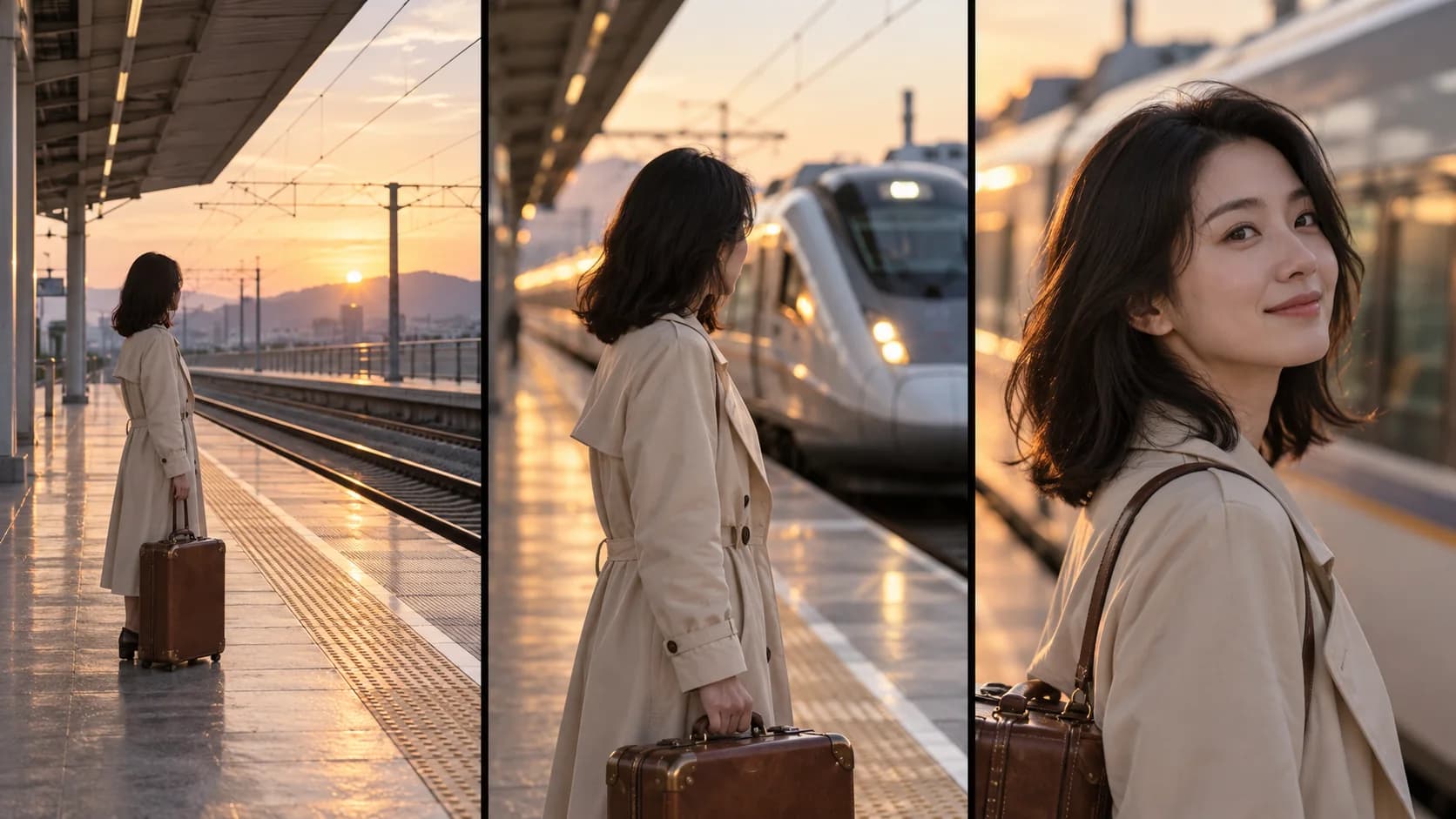
Concept triptych of a traveler waiting, turning toward a train, and smiling at a railway platform

Multi-keyframe control

Make Every Story Beat Count

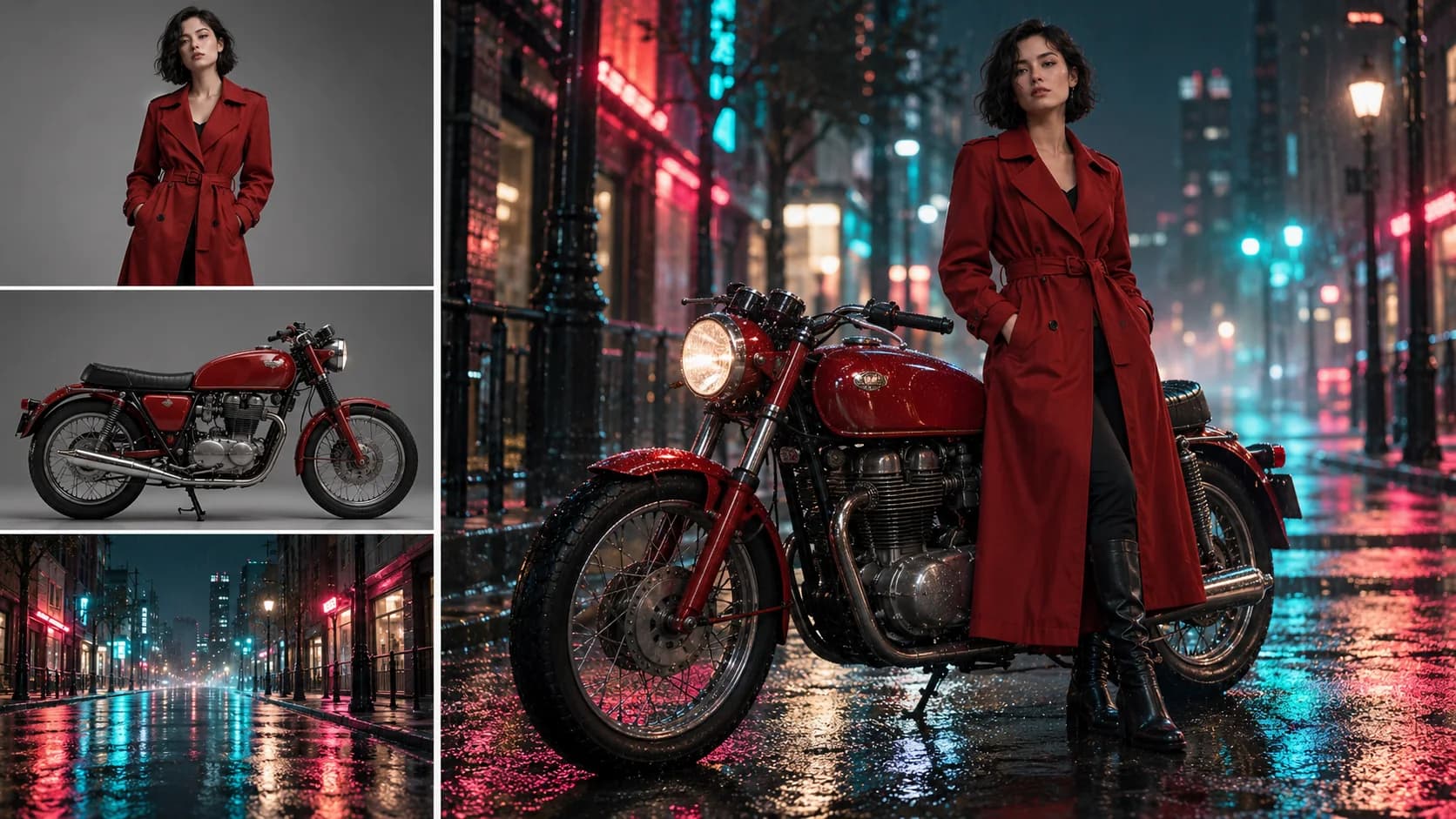
Place up to 10 keyframe images along a timeline to mark visual moments such as a character entrance, a change in composition, or a final close-up.

These checkpoints guide how the scene progresses while the model generates movement between them.

Up to 10 Keyframes

Concept collage with a woman, a red motorcycle, a rainy street, and a combined scene

Omni Reference

Keep Characters and Products Recognizable

Omni Reference lets you combine images, videos, subjects, and voice styles in one task—up to 15 reference assets overall, with separate limits for each input type.

Use a product image to guide its appearance and a video reference to guide action or pacing as you develop a new scene.

Omni Reference · Up to 15 Combined Assets

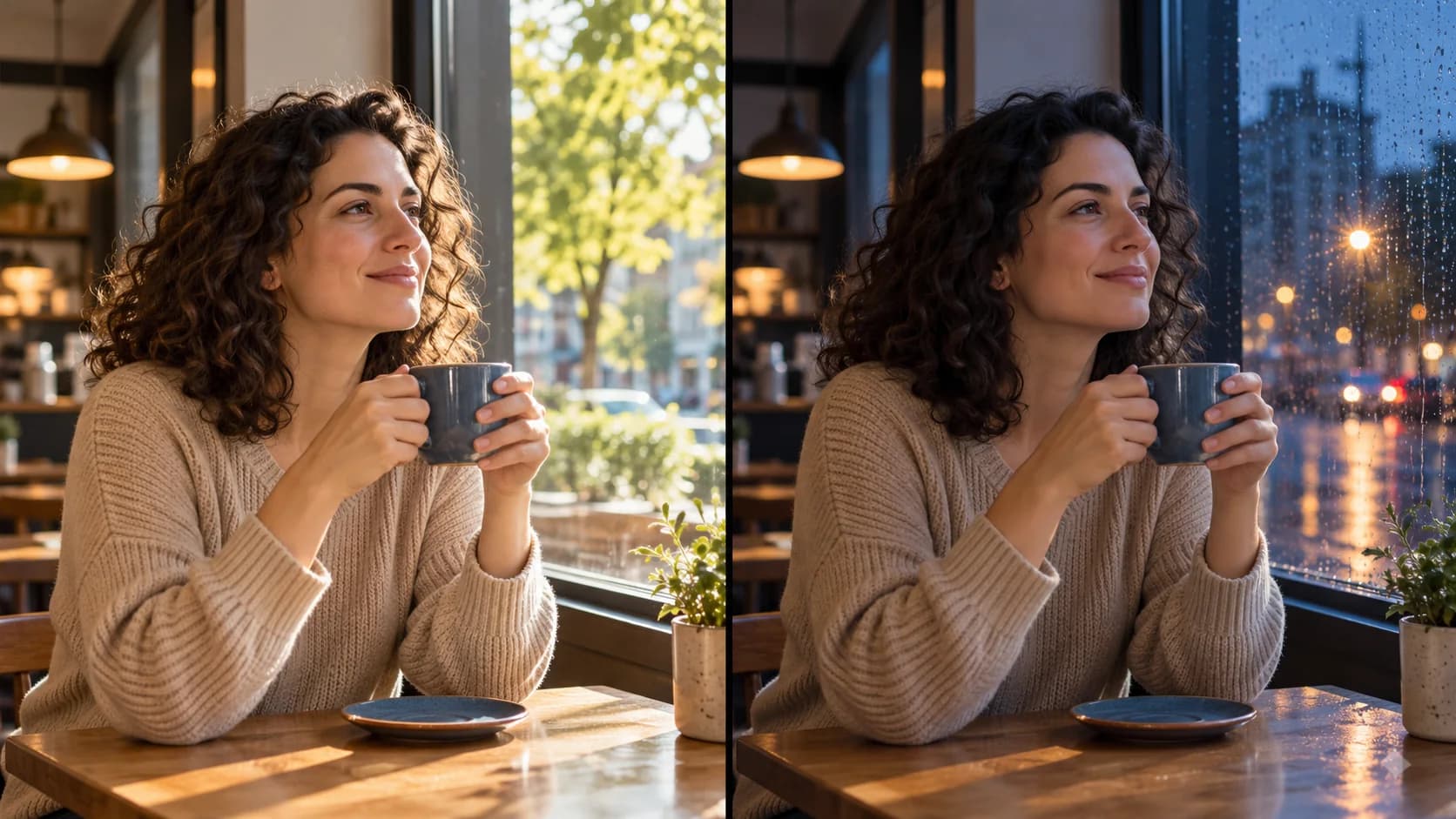
Concept comparison of the same cafe scene in sunny weather and a rainy blue-hour setting

Precise video editing

Change What Matters, Keep What Works

Request targeted changes to an existing video, such as a character’s expression, the background, or camera movement, while guiding the model to preserve the rest of the shot. An editing task can include up to five clips, including one primary video, within a combined duration limit of 30 seconds.

Refine a shot you already like instead of rebuilding the sequence when one detail needs to change.

Precise Video Editing · Up to 5 Clips

Motion & camera

Make Every Camera Move Feel More Natural

Kling 4.0 improves stability during fast motion and complex camera work, including continuous action, tracking shots, and camera orbits.

Follow a subject through a busy street or move the camera around an action in one continuous shot.

Dynamic Motion & Camera Control

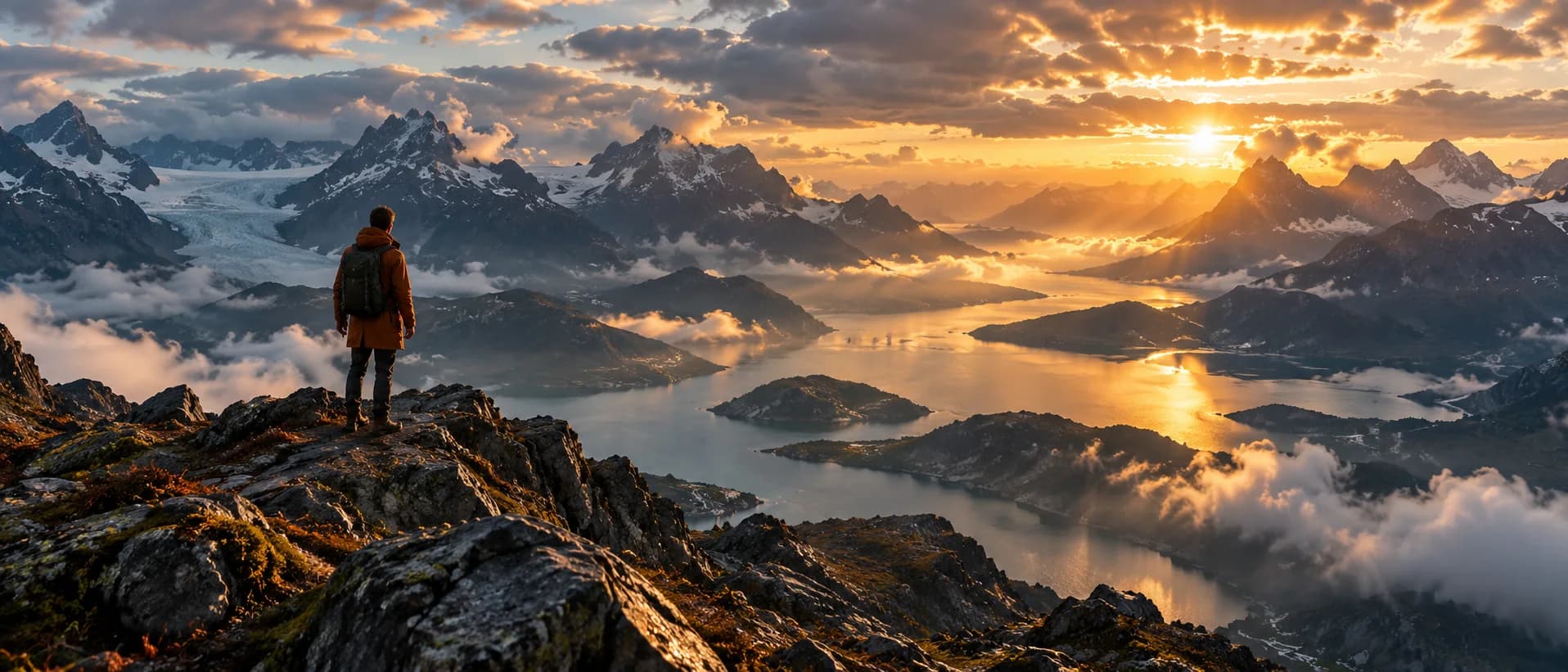
Concept panoramic landscape with a traveler overlooking a glacial lake at sunset

Cinematic visuals

Give Your Scenes a Wider Canvas

Kling 4.0 supports 21:9 ultrawide framing and output up to 4K. 10-bit HDR output at 1080p and 4K has been announced as coming soon.

Use the wider frame for landscapes, group action, or product setups that need more space around the subject.

21:9 Ultra-Wide · Up to 4K

10-bit HDR is coming soon. Check available output settings before creating.

Audio & performance

Make Dialogue and Atmosphere Feel Part of the Scene

Two-channel stereo and improved lip sync help voices align with on-screen performances, while expanded language and accent support gives you more options for dialogue.

Use dialogue, ambience, and music to support a character moment or set the mood of a product scene.

Stereo Audio · Multilingual Speech

Creative applications

What Can Creators Make with Kling 4.0?

From social clips and product showcases to cinematic stories and performances, explore six types of videos you can create with Kling 4.0. Start with a prompt, image, or supported reference materials to bring your ideas to life.

Input media

Education

Explainer Videos

Mode
Omni Reference
Ratio
16:9
Length
15s

Show a process through visible stages, from setup to a finished result. Reference the instructor and equipment, then describe each action in the order viewers should see it.

Creative tip: Keep each step physically clear and verify details before publishing.

Pour-over Coffee in Three Steps

Input media

Storytelling

Story and Character Videos

Mode
Keyframes
Ratio
16:9
Length
22s

Use a starting frame, a middle moment, and an ending frame to map a character reunion. Keyframes guide the visual sequence while the prompt describes movement and dialogue.

Creative tip: Keep the characters and station layout consistent across all frames.

Last Train Reunion

Input media

Product marketing

Product Showcases

Mode
Omni Reference
Ratio
16:9
Length
10s

Place a product in a lifestyle setting while keeping its shape and finish recognizable. Pair a clean product image with a setting reference and guide the camera toward the details that matter.

Creative tip: Describe the product features the camera should preserve.

Ceramic Coffee Mug Detail Reel

Input media

Social content

Social Videos

Mode
Omni Reference
Ratio
9:16
Length
10s

Shape a vertical creator update with a consistent face, setting, and conversational delivery. Use an image for the creator, a second image for the room, and a voice reference for the speaker.

Creative tip: Keep the main action and spoken line short enough for a phone screen.

Everyday Creator Update

Input media

Advertising

Video Ad Concepts

Mode
Omni Reference
Ratio
16:9
Length
15s

Plan a short launch concept with a product reveal, movement, and a closing shot. Use product, location, and character references to give each beat a clear visual role.

Creative tip: Give the opening, action, and final frame distinct jobs.

City Bike Launch Teaser

Input media

Music & performance

Music and Performance Videos

Mode
Omni Reference
Ratio
16:9
Length
12s

Develop a performance scene around a singer, a room, and an original vocal reference. Guide the camera and describe how the music should support the visible action.

Creative tip: Review the finished performance for believable mouth motion and sound.

Small Jazz Studio Performance

How it works

How to Create a Video Online with Kling 4.0

Create a Kling 4.0 video on our platform in four simple steps. Choose a generation mode, add your prompt and references, adjust video settings, review credits, and download your result.

01

Choose a generation mode

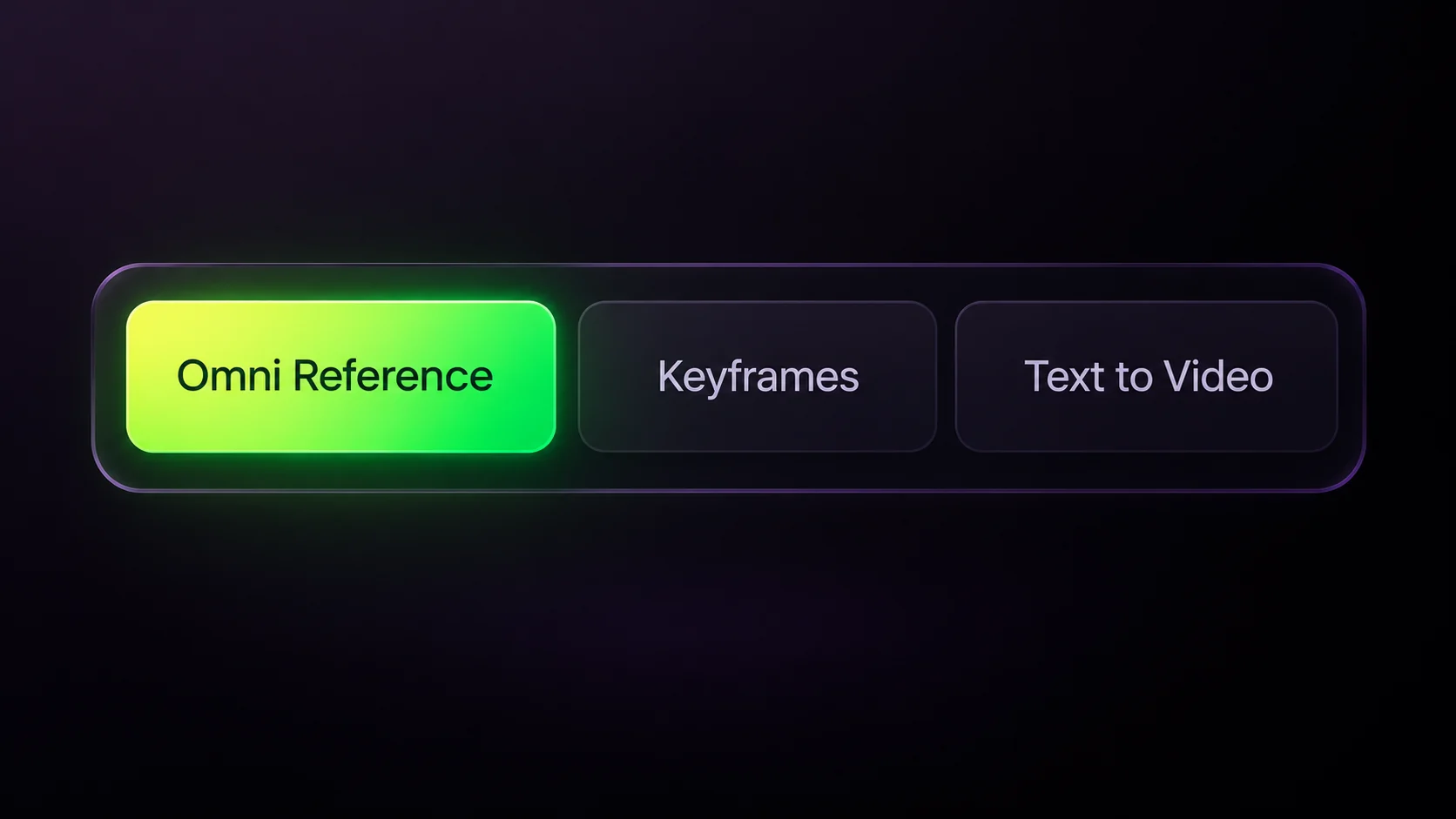
Select Omni Reference, Keyframes, or Text to Video. Each mode offers different ways to guide your scene.

Omni Reference selected beside Keyframes and Text to Video
02

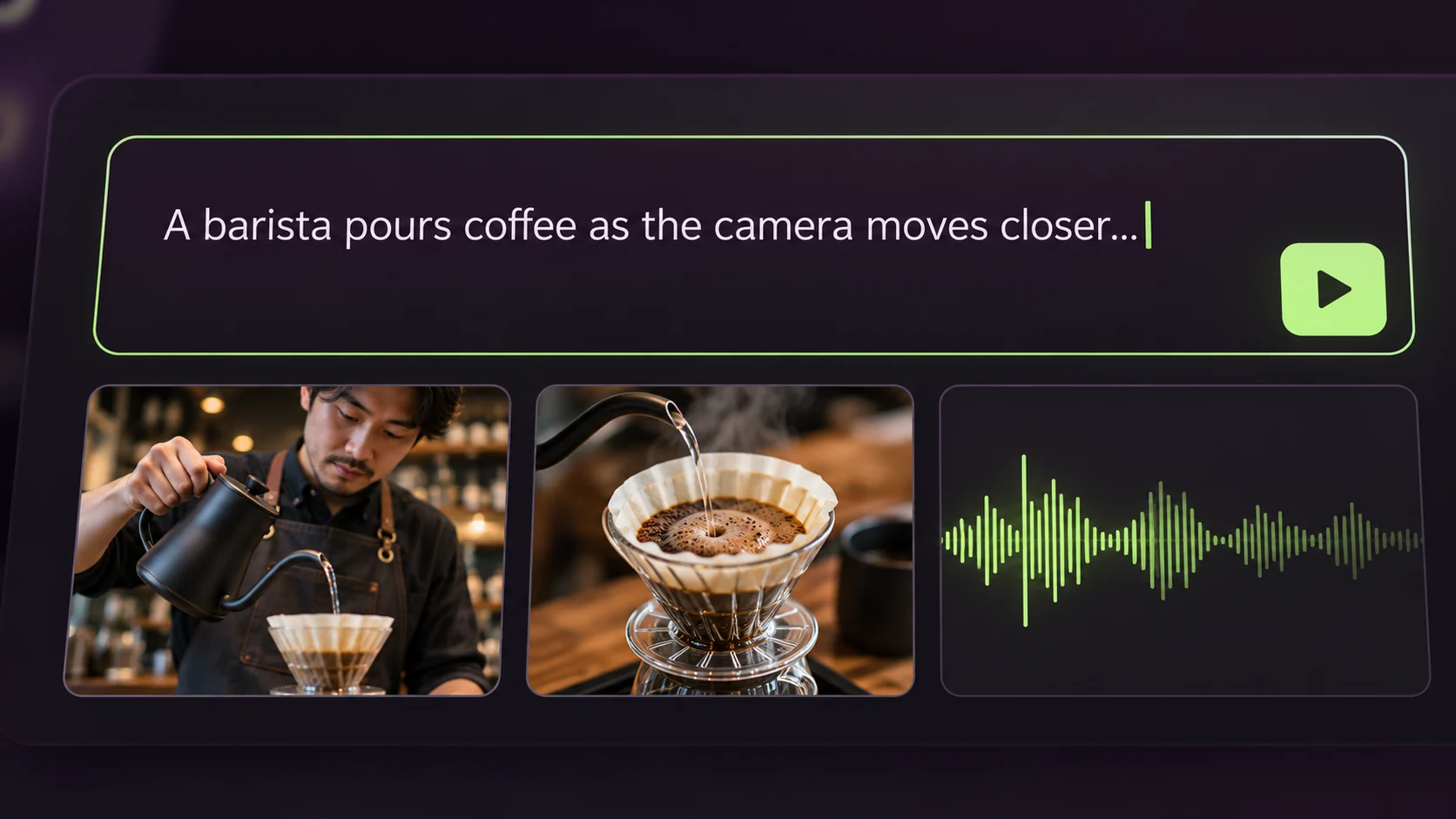
Add your prompt and media

Describe the action. Add a first frame in Keyframes, or upload images, videos, or audio in Omni Reference.

Video prompt with a barista image, coffee image, and audio reference
03

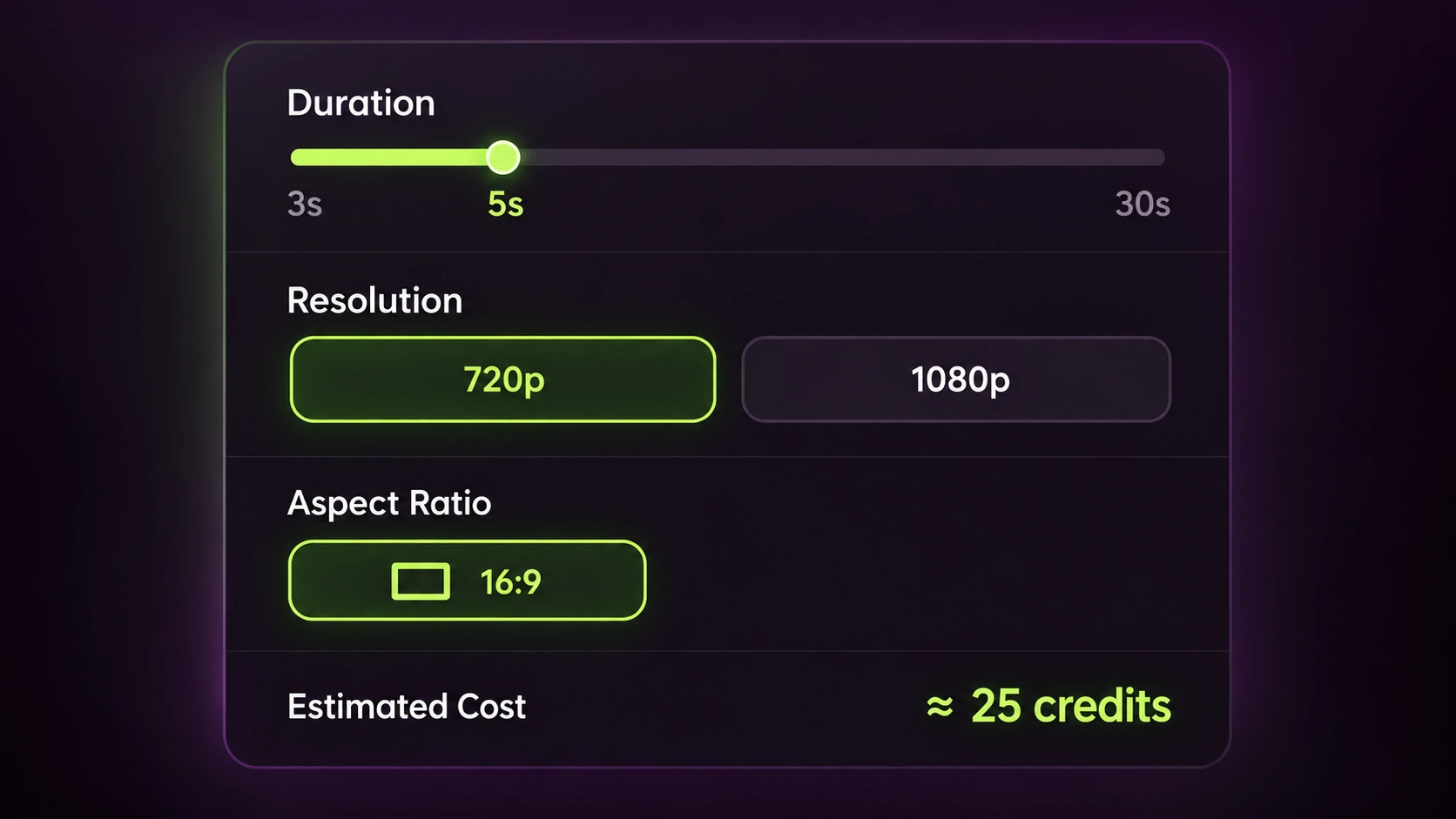
Set options and review credits

Choose a duration from 3 to 30 seconds and an available resolution. Check the aspect ratio and estimated cost.

Five-second duration, 720p resolution, 16:9 aspect ratio, and estimated credit cost
04

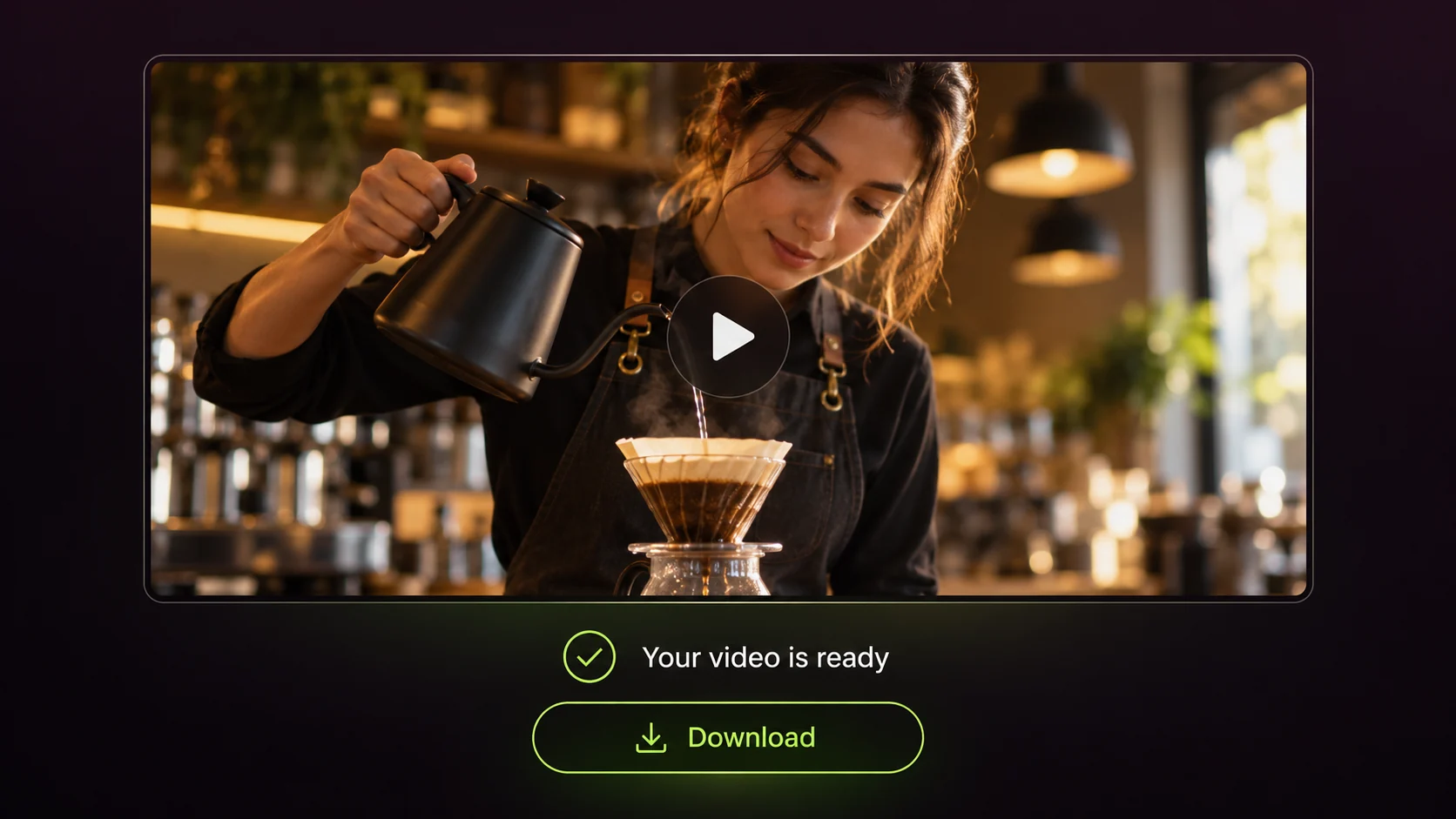
Generate and download

Submit your video. Once it is ready, play it in the preview panel and download the result to your device.

Completed video preview with a Download button

Model comparison

Compare Kling 4.0 and Kling 3.0

See how Kling 4.0 builds on Kling 3.0 with longer video generation, expanded keyframe control, richer references, and updated audio-visual capabilities to help you choose the right model.

Model capabilities of Kling 3.0 and Kling 4.0. Studio availability may differ.
CapabilityKling 3.0Kling 4.0
Video Duration3–15 seconds3–30 seconds
Keyframe ControlFirst and last framesUp to 10 keyframes
Reference InputsSmaller reference combinationsUp to 15 combined assets
Reference VideosUp to 1 video, max 15sUp to 5 videos, 30s total
AudioNative audio, monoNative audio, stereo
Dynamic Range8-bit SDR10-bit HDR at supported resolutions (coming soon)
Video EditingAvailable in Kling 3.0 Omni workflowsMore integrated multimodal editing

These are model capabilities. Both generations list 4K output, but 4K and 10-bit HDR are not currently available in this Studio. Check the generator for selectable settings.

Choose Kling 4.0 for More Creative Control

Choose Kling 4.0 when you need longer scenes, multiple planned visual moments, richer references, or more flexible video revisions.

When Kling 3.0 Still Makes Sense

Kling 3.0 remains useful for shorter scenes, multi-shot storytelling, and projects that don't require the additional timeline and reference controls.

Studio settings

Kling 4.0 Specifications

See the generation modes, output settings, and input limits currently available in this studio.

01 / Generation mode

Text to Video

Start with a text prompt and describe the scene you want to create.

02 / Generation mode

Keyframes

Add a required first frame, up to 8 middle keyframes, and an optional last frame.

03 / Generation mode

Omni Reference

Guide a scene with reference images, videos, and supported audio. Combine inputs within the limits shown in the generator.

Output settings

Duration
3–30 seconds
Resolution
720p or 1080p
Aspect ratio
16:9, 9:16, 1:1, or 21:9 · Keyframes: Auto
Estimated credits
Shown on the Generate Video button for your selected settings

Input limits

Prompt
Describe the scene and motion
Reference images
Up to 10
Reference videos
Up to 5 · 30 seconds total
Reference audio
MP3 or WAV · Up to 3 files · 5–30 seconds and 50 MB each · 720p only
Original audio
Optional with a reference video; unavailable with reference audio

Questions and answers

Kling 4.0 FAQ

Find answers about choosing a generation mode, using voice references, improving video results, managing credits, and understanding your rights when creating with Kling 4.0.

Is kling-4.art the official Kling AI website?

No. kling-4.art is an independent AI video generation platform, not the official Kling AI website. It provides access to supported Kling 4.0 generation features, but available modes, resolutions, and settings may differ from those offered directly by Kling AI.

What’s the difference between Kling 4.0 and Kling 4.0 Flash?

Kling 4.0 supports longer videos of up to 30 seconds, up to 10 keyframes, and more advanced reference controls. Kling 4.0 Flash is designed for faster, more frequent creation, with videos up to 20 seconds at 720p. Flash does not currently support first-and-last-frame or multiple-keyframe generation. Check the generator for available models and settings.

Should I use Keyframes or Omni Reference?

Choose Keyframes when you want to plan specific moments in a video, such as the opening, an important action, or the final shot. Choose Omni Reference when you want images, videos, or voice samples to guide characters, objects, movements, or visual styles. These are separate generation modes and cannot be combined in one task.

Can I upload my own voice or background music?

You can upload MP3 or WAV files as voice references in Omni Reference mode. Voice samples help guide a character’s voice but are not used as background music tracks. To request music, ambience, or sound effects, describe them in your video prompt. On kling-4.art, voice references currently require 720p output.

How can I improve a Kling 4.0 video that doesn’t match my prompt?

Describe the subject, actions, setting, and camera movement more precisely. When using references, explain which details should remain consistent. For scenes with several important moments, consider Keyframes to guide the sequence. Results may vary, and generating a revised version may use additional credits.

How much does it cost to generate a Kling 4.0 video?

With our 5,000-credit pack ($99.90), a 5-second video costs approximately $0.50 at 720p or $0.80 at 1080p. That's about $0.10–$0.16 per second. Costs vary by resolution, duration, and reference video length. You can review the estimated credit cost in the generator before starting.

View pricing and credit packs
What happens to my credits if video generation fails?

When you start a generation, the estimated credit cost is temporarily deducted from your balance. Credits are only charged for successful generations. If the task fails, the reserved credits are returned to your balance. If your balance doesn’t update as expected, contact support@kling-4.art with your task details.

Can I use Kling 4.0 videos for commercial projects?

Yes. Commercial use is permitted under our current Terms of Service, subject to applicable laws, third-party rights, and relevant model-provider policies. Make sure you have the necessary permissions for any copyrighted images, music, trademarks, recognizable people, or voice recordings used in your project.

What happens to the images, videos, and audio files I upload?

Uploaded materials are processed to provide video generation services. Personal data may also be used to operate and improve the service, as described in our Privacy Policy. The policy explains data collection, retention, security, and deletion requests. Avoid uploading confidential or third-party materials without appropriate permission.

Can I get a refund for purchased credits?

You may request a refund within 7 days of purchase, subject to our Refund Policy. Credit usage, promotional purchases, and other eligibility conditions may affect your refund. To request a review, email support@kling-4.art with your account email and order details. Check the Refund Policy for the full conditions.

Start with your idea

Create your next video with Kling 4.0

Write a prompt, add an image, or guide the scene with keyframes and references.