A costume photo, a party theme, or a product image can become the starting point for a Halloween video. The creative decision is what happens next: a transformation, a surprising discovery, or a playful reaction.
This guide explores 5 Halloween AI video ideas and shows how to shape them with Kling 4.0.
TL;DR: Kling 4.0 Halloween AI Video Guide
Plan one clear event. A costume reveal, small story, or product unveiling gives viewers something to follow.
Choose controls around your materials. Use Keyframes for predefined visual moments or Omni Reference for character, product, setting, and movement guidance.
Make the reveal readable. Describe action order, camera behavior, lighting, and sound, then inspect the complete result before sharing.
Why Choose Kling 4.0 for Halloween AI Videos?
Give your Halloween idea a clear visual progression.
Kling 4.0 offers several useful tools for seasonal creativity:
First, last, and multiple keyframes: Guide important visual states, such as an everyday portrait and a completed witch costume. The model supports up to 10 keyframes.
Omni Reference: Use images and videos to communicate character appearance, product details, environments, or movement.
3–30-second generation: Give an opening, reaction, and reveal room to develop.
Visual styles and audio: Explore cinematic suspense or playful animation, with sound cues that support the action.
Results still need review for continuity, timing, and visual accuracy.
Five Halloween AI Video Ideas to Create with Kling 4.0
Build each clip around one moment worth watching.
1. Halloween Costume Reveals: Plan the Before and After
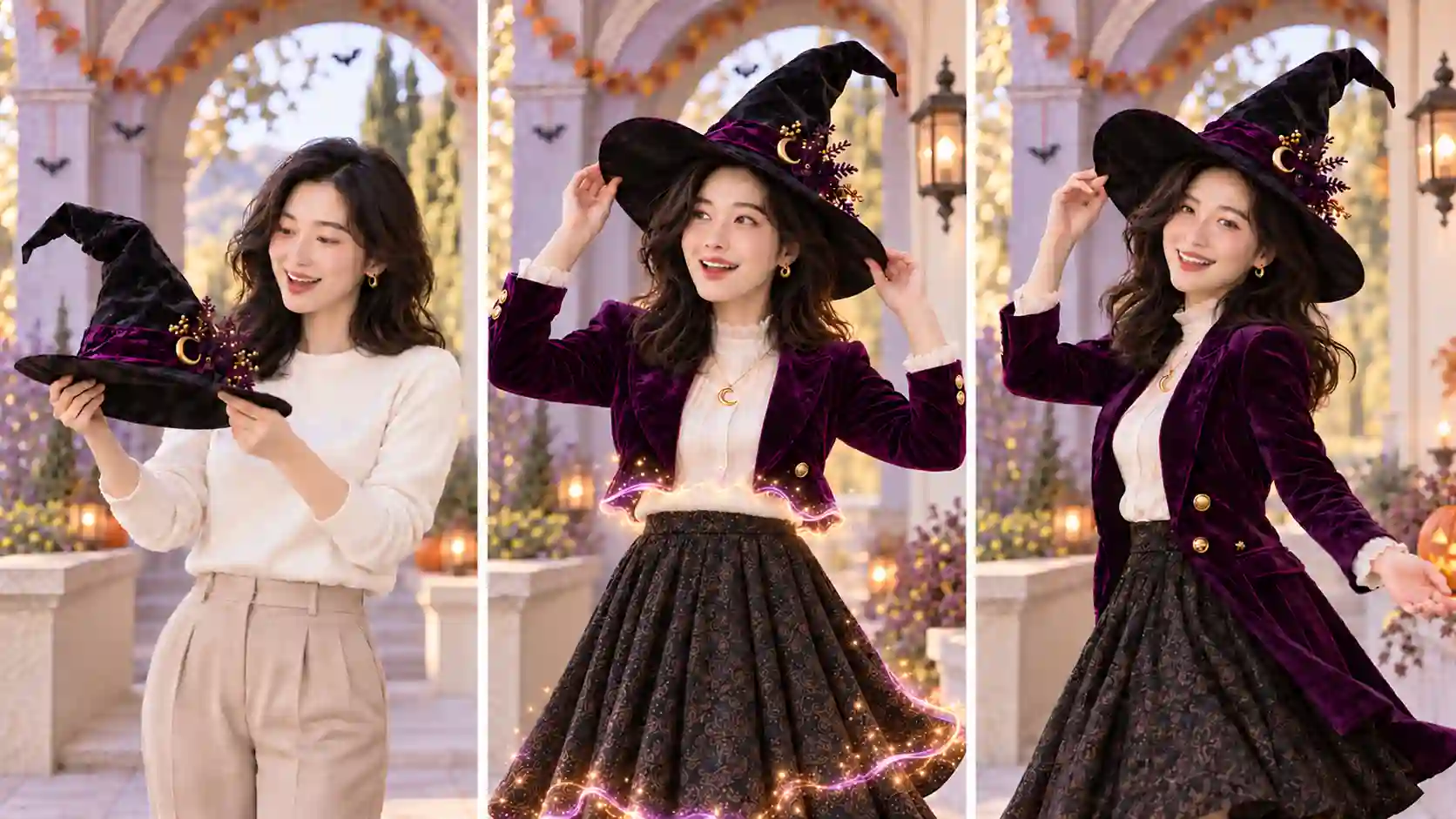
Turn a portrait into a witch, vampire, or original Halloween character while keeping the person recognizable.
✅ Use Keyframes:
Prepare compatible starting and ending images. Keep the face, pose, framing, and background aligned where possible. Add a middle frame only when it clarifies an important stage.
💡 Creative direction:
Give the transformation a visible trigger, such as lifting a hat or passing behind a curtain. Keep the camera movement restrained so viewers can follow the outfit change.
Prompt example:
The woman raises the black hat toward her head. As she lowers it into place, her outfit transitions into the witch costume shown in the final frame. Keep her face recognizable and the camera steady. End with a relaxed smile and the complete hat visible.
For an AI Halloween transformation video, closely related starting and ending compositions make the intended progression easier to communicate.
2. AI Horror Shorts: Build Suspense Before the Reveal
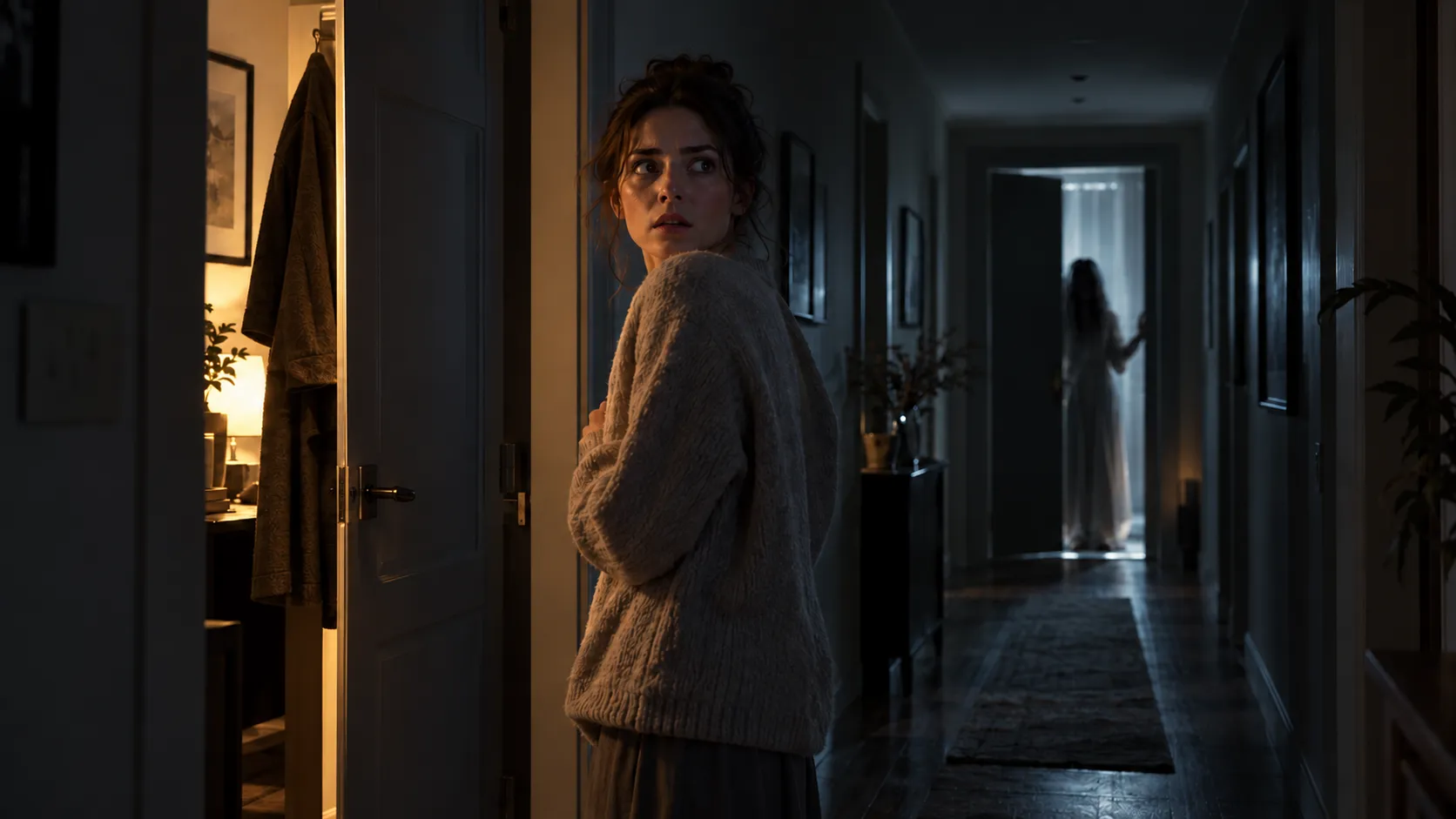
A short suspense scene needs a clear cause for the character’s reaction.
Plan three beats:
a clue appears
someone notices
result becomes visible
✅ Use Keyframes:
When you have specific compositions for the clue and reveal. A hallway opening, a figure’s reaction, and a final doorway view can establish the intended progression.
💡 Creative direction:
Write where the character stands, what draws their attention, and which direction they turn. Give the camera one job, such as slowly moving closer to the doorway.
Describe sound in relation to an event: a floorboard creaks, the character pauses, then looks toward the noise. Keep enough light on the face and important objects for the audience to understand the scene.
3. Playful Halloween Animation: Give Characters a Goal
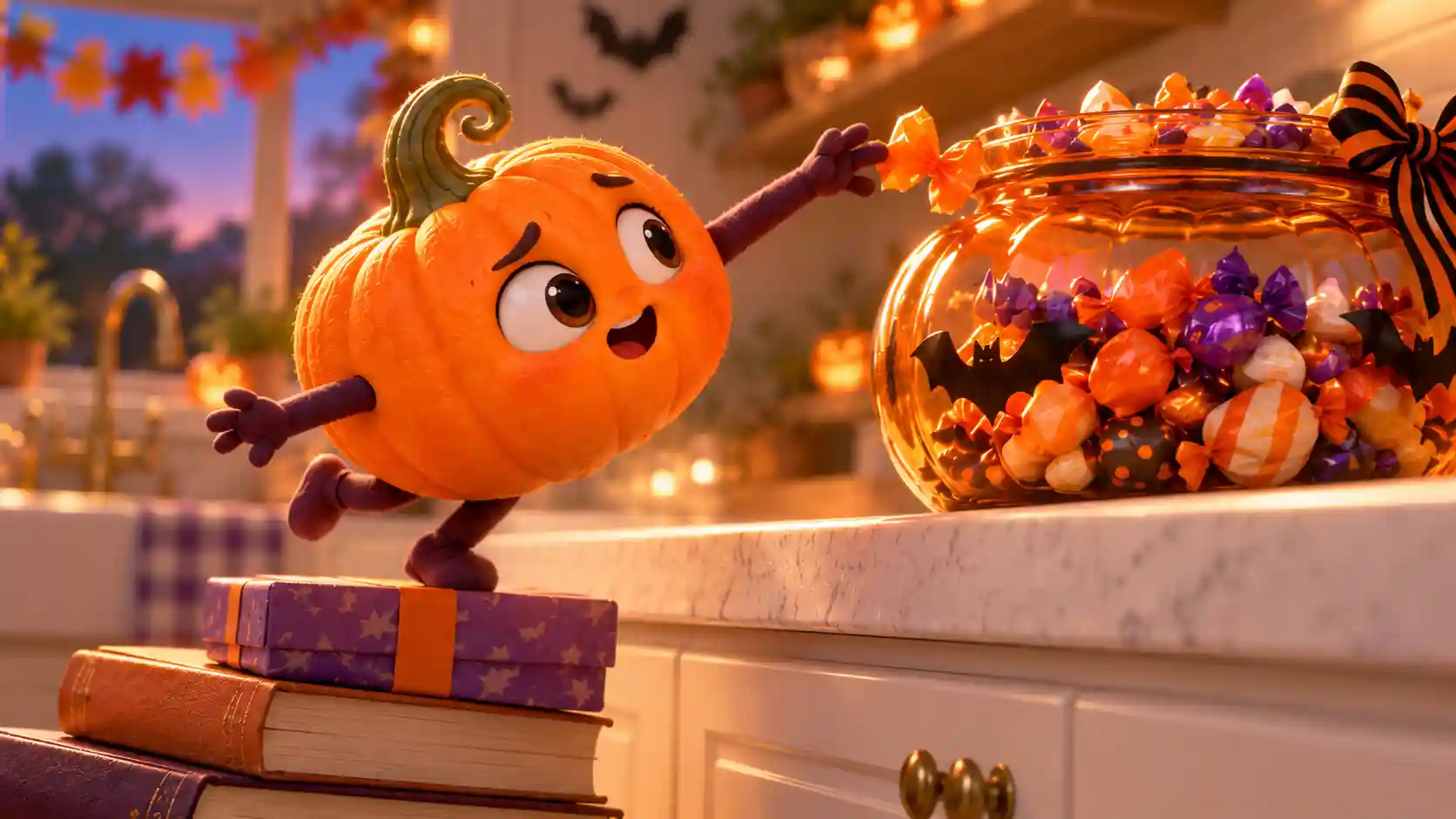
For cute Halloween AI cartoons, give a pumpkin or friendly monster a small objective: reach a candy jar, deliver a party invitation, or surprise a friend.
✅ Use Omni Reference:
Supply a clear character image and a compatible style reference. If movement matters, a suitable video reference can help communicate its rhythm.
💡 Creative direction:
Define an action and a consequence. A tiny pumpkin stretches toward a candy jar, loses its balance, and reacts with a sheepish smile.
Specify what stays consistent: the character’s face, proportions, colors, and surface material. Choose one visual treatment, such as soft felt animation or polished 3D, and carry it through the scene.
4. Halloween Video Invitations: Make the Message Clear
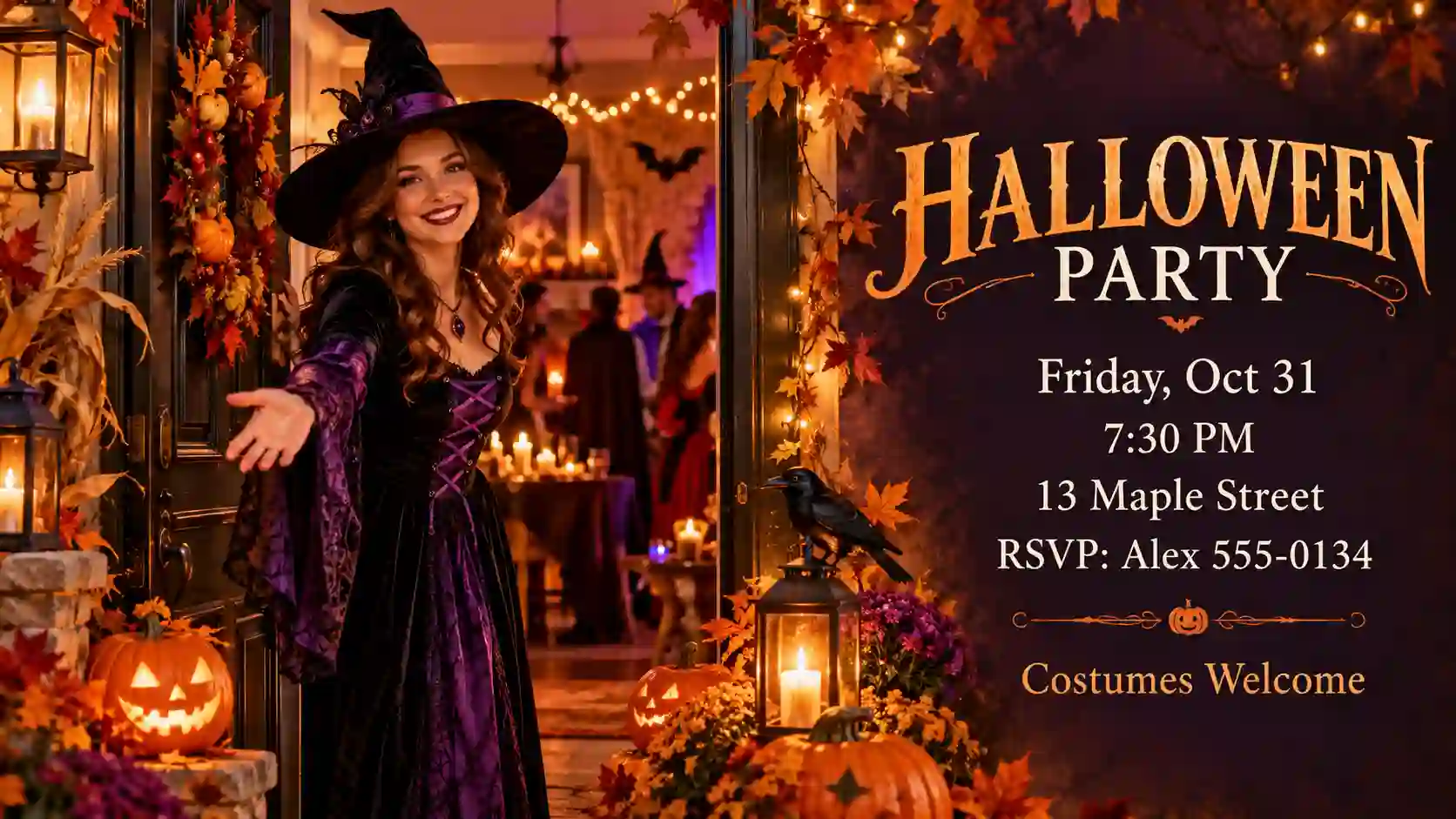
A Halloween video invitation should establish the party’s personality and leave room for practical information.
✅ Use Omni Reference:
Bring in an event setting, host character, or invitation design to guide the atmosphere.
💡 Creative direction:
Choose one welcoming action. A host opens a decorated door, a pumpkin lights up, or a curtain reveals the party space. Keep the movement away from the area reserved for the event details.
Generate the visual sequence first, then add the date, time, address, and RSVP instructions in a video editor. Check the information at phone size before sending it.
For a reusable invitation, save a clean version without event text so the visual can support future gatherings.
5. Halloween Product Ads: Keep the Product Recognizable

Build a seasonal scene around a product’s real appearance. The product should remain easy to identify as the atmosphere changes.
✅ Use Omni Reference:
Provide a clear product photo and a separate setting reference. Explain which source controls the product’s shape, color, material, and packaging.
💡 Creative direction:
Use one reveal, such as a gift box opening or a lantern illuminating the item. Place most Halloween decoration behind or beside the product.
Prompt example:
Use the product reference for the bottle’s shape, color, cap, and label placement. Place it inside the open gift box in the setting reference. The camera slowly moves closer as warm lantern light reveals the bottle. Finish with a clear, unobstructed product view.
Inspect packaging and labels closely before using Halloween product video ads in a campaign. Correct important text in an editor when needed.
How to Make a Halloween AI Video with Kling 4.0
Choose the outcome first, then the controls.
Step 1: Write a Short Creative Brief
Complete this planning sentence:
A [subject] begins in [starting state], reacts to [trigger], and ends in [final state].
Then list the details that must remain consistent: identity, costume, product design, or location. This brief gives you a concrete result to evaluate.
Step 2: Prepare Your Frames or References
Choose one route:
Keyframes: Start with the required first image, then add useful middle or ending images. Keep character design and lighting compatible. Prepare the first image in the framing you want the video to follow.
Omni Reference: Select a small set of relevant assets. Assign each a job: character, product, setting, style, or movement.
The two creation entries cannot be combined in a single generation task. For a broader explanation, see the Kling 4.0 Creative Control Guide.
Step 3: Write an Ordered Video Prompt
Use this structure for Halloween AI video prompts:
Use [references or keyframes] for [their roles]. Begin with [opening]. When [trigger], the subject [action]. The camera [movement]. Light the scene with [source]. Include [sound cue]. End on [final composition].
Describe subject movement and camera movement separately. Replace broad directions such as “make it spooky” with visible choices: a warm doorway, cool background shadows, a delayed reaction, or a slow approach.
If you want only environmental sound, explicitly request no background music.
Step 4: Choose Settings and Generate
Open the Kling 4.0 generator, sign in, and select the appropriate creation mode.
Choose a duration that gives the action enough time to read.
For social posts, prepare a vertical composition;
For a wider scene, use landscape framing.
In Keyframes, the aspect ratio follows the first image.
Kling 4.0 generator offers 720p and 1080p. Check the available settings and estimated credits before submitting, then generate your video.
Step 5: Review, Refine, and Save
Watch once at normal speed for the overall rhythm. Then inspect the transformation, interactions, and final reveal more closely.
Change the weakest instruction first. A missed reaction may need clearer timing; an obscured product may need simpler camera movement.
Save approved references, prompts, and settings. To build an original Halloween series, reuse a recognizable character and visual style while giving each episode a different event or ending.
Start Kling 4.0 Halloween Video Creation
Fix Common Halloween AI Video Mistakes
Revise the weakest moment, not the entire idea.
If you notice… | Adjust this |
A changing face or costume | Use more compatible images and reduce simultaneous changes. |
An abrupt transformation | Simplify the visual gap or add a useful middle keyframe. |
A reveal that is hard to see | Reduce camera travel and give the result more screen time. |
An unreadable face or dark outfit | Specify a soft main light that reaches the subject. |
Decorations competing with the subject | Keep one main effect and quieter background details. |
Confusing character interactions | Define starting positions, movement paths, and action order. |
For realistic Halloween AI videos, also inspect contact, balance, and hand movements. Shorten or simplify an interaction when its physical logic is unclear.
Kling 4.0 Halloween AI Video FAQs
Can I make Halloween AI videos without filming myself?
Yes. Start with a text-based scene, an original illustrated character, or a product image you own or have permission to use. Live-action footage is not required for every project.
Can I make a seamless Halloween video loop?
Plan similar opening and closing compositions, including the subject’s pose and lighting. Matching images can guide the endpoints, but movement and sound also need to join smoothly. Check the loop in an editor.
Can I use one Halloween video for both Reels and YouTube Shorts?
A vertical version can be a starting point for both. Keep faces and important action away from interface areas, preview each publishing crop, and adjust captions and framing for the destination.