Create Videos with Kling 2.6

Kling 2.6 AI Video Generator

Create a short Kling 2.6 video from a prompt or source image. Describe the action, choose your settings, and add generated sound when your scene needs it.

0/2500

Output settings

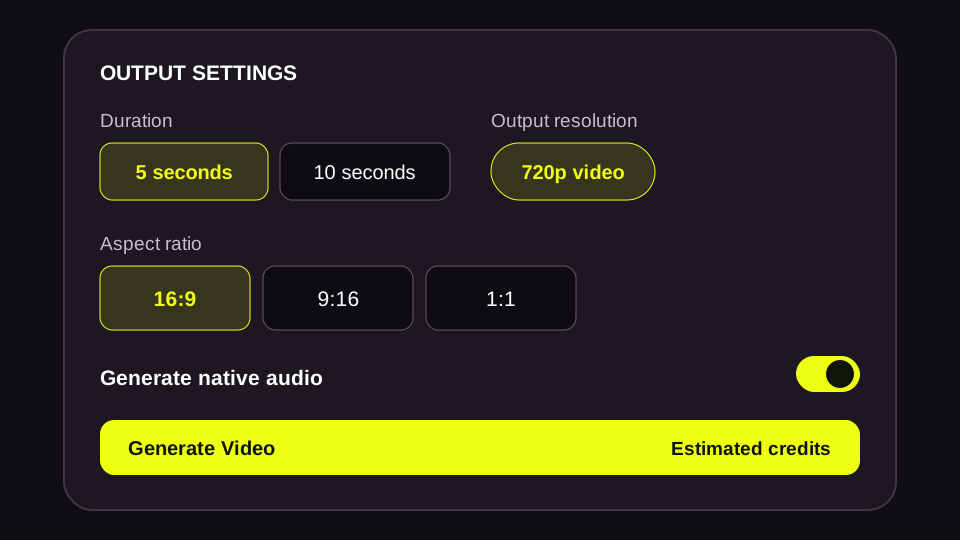
Duration

Output resolution

720p video

Aspect ratio

The estimated credits are reserved when you submit. They are charged only if your video succeeds and returned if generation fails.

PreviewKling 2.6

Your video preview

Your generated video will appear here.

Kling 2.6 previewPreview only

Made with Kling 2.6

Kling 2.6 Video Examples

Watch Kling 2.6 videos made from prompts and images. Open an example to see its inputs, then load them into the generator to make your own version.

Small business promotion

A Neighborhood Bookstore

In a neighborhood bookstore on a cool November afternoon, the shop owner hands a paper-wrapped book to a customer. The customer smiles and says, "This is perfect for her." The owner replies, "I hope she loves it." Keep their faces, hands, clothing, and the book consistent with the source image. A gentle handheld camera moves slightly closer. Add soft page turns, quiet conversation in the shop, and faint street ambience. One natural continuous shot. No captions, logos, or extra people.
Social media story

Friendsgiving at Home

In a modest American apartment on a November evening, four adult friends share a relaxed Friendsgiving dinner around a small table. Warm lamp light falls on simple dishes and a bowl of roasted vegetables. One friend passes the bowl as another laughs and says, "Save me some of that." The others smile and continue serving food. Use a steady medium shot with a subtle camera push-in and natural small gestures. Add gentle overlapping conversation, dishes touching the table, and quiet room ambience. One continuous scene. No music, captions, logos, or extra people.

Product showcase

A Handmade Holiday Gift

A shopper gently lifts the handmade ceramic mug, turns it just enough to show the glaze and handle, then places it beside the coffee bag. Preserve the exact mug shape, glaze, coffee bag, counter, and window light from the source image. Use a slow close camera move with realistic hand motion. Add a soft ceramic contact sound and quiet shop ambience. No speech, text, logos, or extra products.

Travel content

A Fall Weekend Escape

From the back seat of a parked car at a late-autumn overlook in upstate New York, show two adult friends in jackets looking over a folded road map. Bare trees and a cloudy sky are visible through the windshield. One friend points to a route, then they exchange a quick smile and look out at the landscape. Keep the camera in the back seat with slight natural handheld movement. Add soft paper rustle, a quiet car interior, and distant wind outside. One continuous shot; no driving, captions, logos, or scene change.

Local experience promotion

A Pottery Workshop

In a neighborhood pottery studio, an instructor gently guides a student's hands as the clay turns on the wheel. The student laughs softly when the cup begins to take shape. Keep both people, their aprons, the clay, wheel, shelves, and window light consistent with the source image. Move the camera a little closer to the hands, then hold on the forming cup. Add the soft hum of the wheel, wet clay sounds, and natural room ambience. No captions, logos, or scene cuts.

Creative controls

Key Features of Kling 2.6

Shape a short scene from an idea or image. Guide what moves, where the camera goes, and what viewers hear.

Turn a Written Idea into a Scene

Start with a simple idea, like a rainy walk or a product reveal. Describe who is there, what happens, and how the scene should sound.

Bring a Still Image into Motion

Start with a photo, illustration, or product shot. Describe a small action or camera move that brings the image to life.

Direct the Action and Camera

Move closer to a product, follow a person across the frame, or reveal a setting. One clear camera direction helps the shot feel intentional.

Add Sound to the Moment

Ask for a short line of dialogue or the sounds of the setting, such as footsteps or rain. Turn audio off when you need a silent clip.

Creative applications

What Can You Create with Kling 2.6?

See how creators can use Kling 2.6 for social posts, product showcases, short ads, and character scenes. Pick one focused idea and make it move.

Social Media Videos

Give a post one moment worth watching: a reveal, reaction, or change of scene. Choose a vertical frame for mobile feeds when using text to video.

Creative tip: Focus on one recognizable action.

Product Showcases

Turn a product photo into a short close-up that shows its shape, finish, and setting. A gentle camera move can draw attention to the details shoppers care about.

Creative tip: Name the details you want to preserve.

Character Dialogue

Show a character greeting, reaction, or brief exchange. Describe who speaks and what happens around them so the moment feels grounded in the scene.

Creative tip: Give each speaker a short, clear line.

Cinematic Scenes

Set a mood with light, weather, and camera movement. A quiet street or crowded station can feel different when you describe what the audience hears.

Creative tip: Describe how the environment sounds.

Video Ad Concepts

Try an opening shot or product reveal before planning a full campaign. Share the clip with your team to discuss the visual direction.

Creative tip: Treat each generation as one scene.

Local Business Stories

Show a brief exchange in a shop or studio. Start with one clear action, such as handing over a purchase or guiding a student through a craft.

Creative tip: Keep the people and setting consistent.

How it works

How to Create Videos with Kling 2.6 Online

Use the Kling 2.6 generator in four steps. Choose text or image input, write your prompt, review the settings and credits, then download your video.

01

Choose how to start

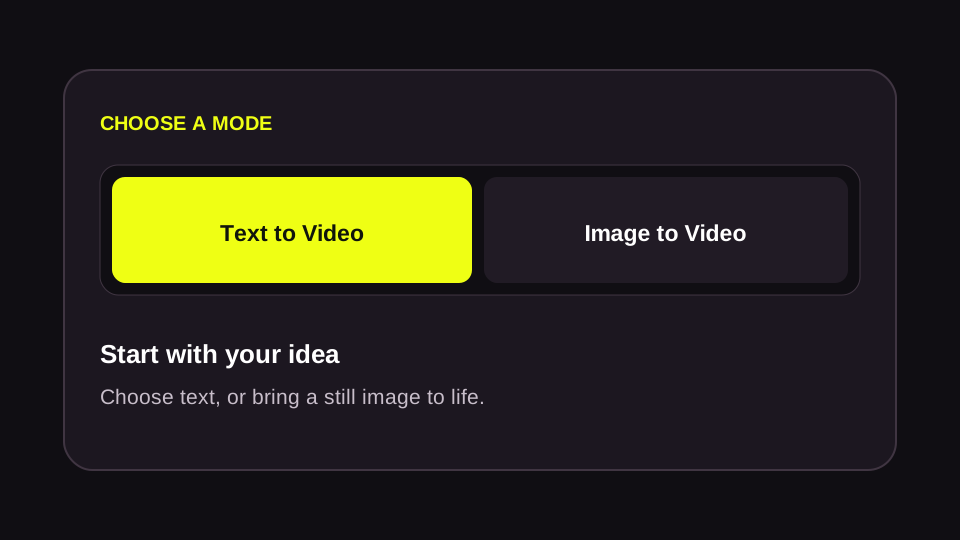
Select Text to Video for an idea you want to describe, or Image to Video to animate a still image.

Text to Video selected beside Image to Video
02

Describe your scene

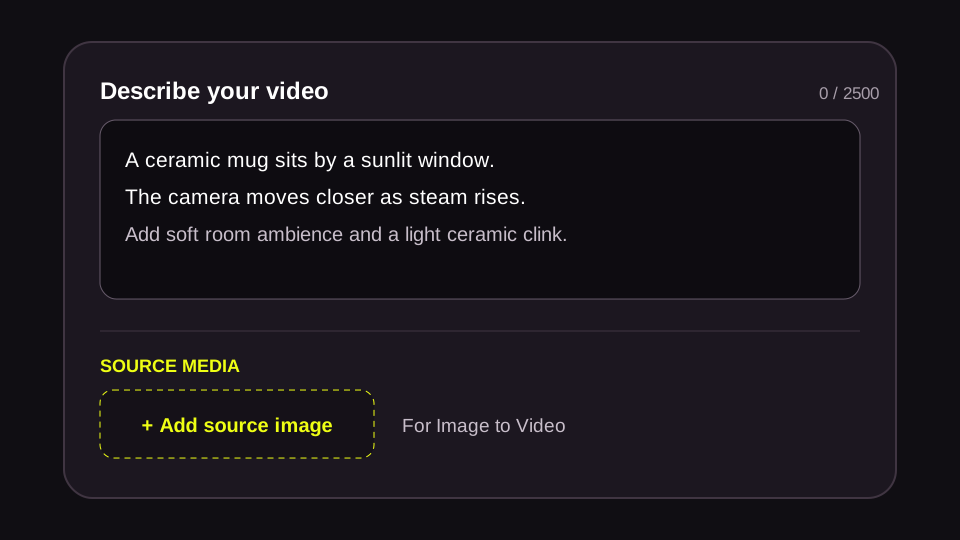
Write what happens on screen and what viewers should hear. For Image to Video, add one source image.

Video prompt describing a mug, camera movement, and sound beside the first frame upload
03

Set options and review credits

Choose five or ten seconds, check the 720p output, and decide whether to generate audio. Text to Video also lets you choose a frame shape. Review the estimated credits before submitting.

Five and ten second options, 720p output badge, native audio, and estimated credits
04

Generate and download

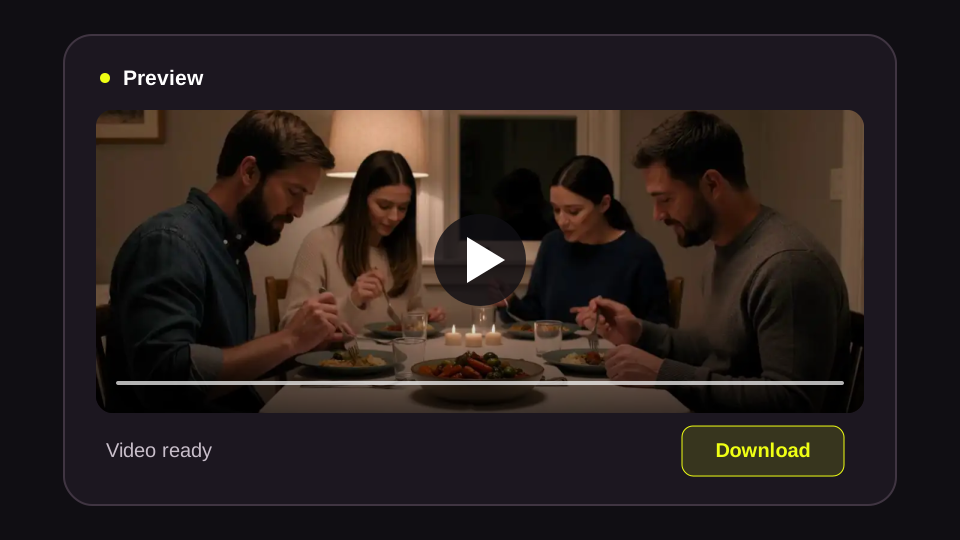
Generate your Kling 2.6 video. When it is ready, play it in the preview and download it to your device.

Video preview with playback control and Download button

Choose a version

Kling 2.6 vs Kling 3.0 and 4.0

Compare Kling 2.6, 3.0, and 4.0 by video length, input options, and scene control. Find the model that fits the clip you want to create.

Kling 2.6

Start with five- or ten-second videos from text or images, with optional native audio.

Kling 3.0

Explore longer scenes, multi-shot storytelling, and reference-based workflows.

Explore Kling 3.0

Kling 4.0

Create longer scenes with keyframes and more reference options.

Explore Kling 4.0

What the model supports

Kling 2.6 Video Settings

Check the input, length, framing, and audio options for each creation mode before you generate.

SettingText to VideoImage to Video
Start withA written promptOne image and a prompt
Clip length5 or 10 seconds5 or 10 seconds
FramingChoose 16:9, 1:1, or 9:16Set by the source image; no aspect ratio selector
SoundOptional native audioOptional native audio

Questions and answers

Kling 2.6 FAQ

Get answers about video inputs, sound, credits, and downloads before you create with Kling 2.6.

Can Kling 2.6 make videos with sound?

Yes. You can request dialogue, ambient sound, or sound effects with Native Audio. You can also turn it off to make a silent clip. Results vary by prompt.

Can I turn one image into a video?

Yes. Add one source image and describe the action or camera movement. The image sets the video frame, so there is no separate aspect ratio choice in this mode.

What image can I upload here?

The current generator accepts one JPG or PNG image up to 10 MB, with at least 300 pixels on each side. Its upload area shows the full size and shape limits.

How long are Kling 2.6 videos?

The text-to-video and image-to-video workflows shown here use five- or ten-second clips.

What happens to my credits if generation fails?

The estimated credits are reserved when you submit. You are charged only after a successful generation. If generation fails, the reserved credits are returned to your balance.

How many credits will a video use?

The generator shows an estimate based on your selected duration and audio setting before you submit. See credit usage by model.

When will purchased credits appear in my account?

Purchased credits are added to your account immediately after a successful payment. See credit options.

How can I get a better result?

Describe one clear action, name the sounds you want, and keep the prompt consistent with your source image. Review the examples for starting points.

Where can I find and download my videos?

Play and download a finished video in the preview, or find past creations in your profile. Videos are stored for six months. Download any you want to keep before they expire.

Can I use a generated video commercially?

Commercial use depends on our Terms of Service and your rights to any images, voices, or other material you use.

Is this the official Kling AI website?

No. kling-4.art is an independent platform and is not the official Kling AI website.

Ready to Create a Video?

Start a Kling 2.6 video with a prompt or image. Choose your clip settings, review the credit estimate, and turn your idea into a video you can share.