Create short videos with Flash

Kling 4.0 Flash Video Generator

Turn a quick idea, favorite photo, or visual reference into a short video. Shape the action with a prompt, then create a 3–20 second clip at 720p.

Describe the scene in detail

0/10000

Source media

Add the references that should guide your scene.

Reference images and videos

0/15

Up to 10 PNG/JPG images and 5 MP4/MOV videos, 15 files total. Videos: 3–20 seconds each, 20 seconds combined.

Output settings

3s20s

Resolution

3 credits per second

720p output

Aspect ratio

3 credits per second. Credits are charged only for successful videos.

See Flash in Action

Kling 4.0 Flash Video Examples

See how a prompt, a starting image, or visual references can shape a short scene. Open each example to explore the inputs behind the result.

Reference to Video

Umbrella Weather Test

Length
12s
Resolution
720p
Ratio
16:9

Combine several images to guide a character, an object, the setting, and the final look of a scene. Give each reference a clear role so the finished video follows your visual direction.

Input media
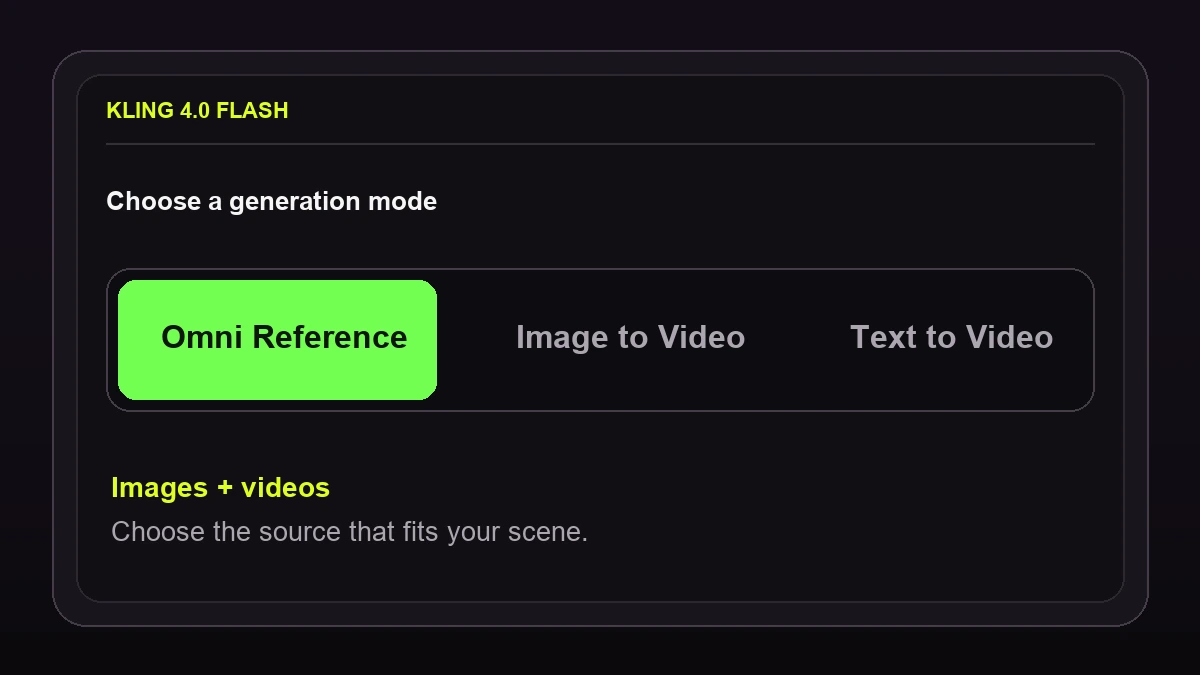
Image to Video

Mower Pit Stop

Length
13s
Resolution
720p

Turn a still image into a moving scene. Describe the actions, camera angles, and sounds you want while keeping the people and objects from your starting image recognizable.

Input media

Video to VideoSeparate editing workflow

Snowy Leaf Blower Edit

Length
10s
Resolution
720p

Change the look of an existing video with a text instruction. Keep the shots and timing you like while exploring a different setting or visual treatment.

Input media

Text to Video

Leaf Blower Neighbors

Length
10s
Resolution
720p
Ratio
16:9

Create a short video from a written idea without uploading media. Describe the characters, setting, action, camera shots, and sound to guide the result.

Input media

Prompt only. No image or video input.

Made for Short-Form Creation

Why Choose Kling 4.0 Flash

Try a new scene from text, bring a still image to life, or keep visual details in view with references. Pick the creative starting point that fits your idea.

Text to Video

Try a New Take on Your Idea

Describe one action, generate a clip, then adjust the prompt to explore another setting or camera angle.

You can compare versions without preparing source media.

Image to Video

Bring One Image into Motion

Use a product photo, portrait, or illustration as the starting frame for a short scene.

Add a prompt when you want to guide the movement or camera.

Omni Reference

Guide the Details That Matter

Add images or videos to show the person, product, setting, or movement you want the new scene to follow.

Use the prompt to explain what each reference should guide, then review the result.

At a glance

Kling 4.0 Flash Specifications

Plan your clip with the right inputs and settings. Find the video length, output format, and upload limits available in this Flash generator.

Output and mode limits
Video length3–20 seconds
Resolution720p
Dynamic range8-bit SDR
Aspect ratioText: 16:9, 9:16, 1:1, or 21:9. Omni Reference adds Auto. Image to Video uses Auto.
Starting imageOne PNG or JPG image in Image to Video mode
Omni Reference inputsUp to 10 images and 5 videos, with 15 files total; reference videos up to 20 seconds combined
Frame controlOne starting frame; no ending or middle frames

Creative Applications

What Can Creators Make with Kling 4.0 Flash?

Make a social post, show a product in motion, or test an ad idea. See how creators can turn everyday source material into short videos for real projects.

Social Videos

Start with a written idea for a short post, such as a single reaction or everyday moment. Use Text to Video to try the scene before preparing media.

Start with: A prompt; choose 9:16 for a vertical clip.

Product Showcases

Use a product photo as the first frame, then describe a reveal or a small camera move. Review the result to check that important details look right.

Start with: One product image in Image to Video.

Video Ad Concepts

Draft a short product moment for a campaign review. Add product and setting images when both need to guide the new scene.

Start with: Product and setting images in Omni Reference.

Animated Photos

Give a portrait or travel photo one clear movement, such as a turn toward the camera or a slow view of the setting.

Start with: One photo in Image to Video.

How it works

How to Generate a Kling 4.0 Flash Video

Create a short video in the Flash generator, from choosing your starting point to saving the finished clip. The form shows what to add and what it will cost before you generate.

01

Choose how to start

Use Text to Video for a written idea, Image to Video for one photo, or Omni Reference to guide a scene with images and videos.

Flash form with Omni Reference selected beside Image to Video and Text to Video
02

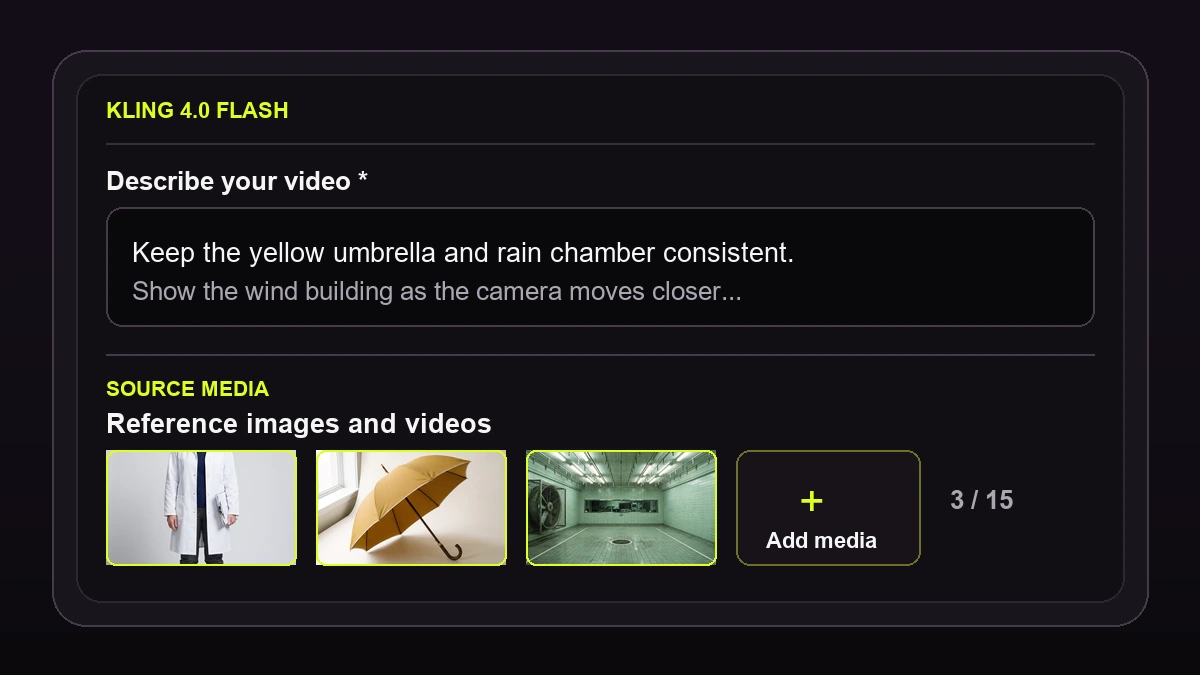
Describe and add media

Describe the action for Text to Video or Omni Reference. For Image to Video, add a starting image; a prompt is optional. Wait for any uploads to finish.

Flash prompt field and combined reference image and video upload area
03

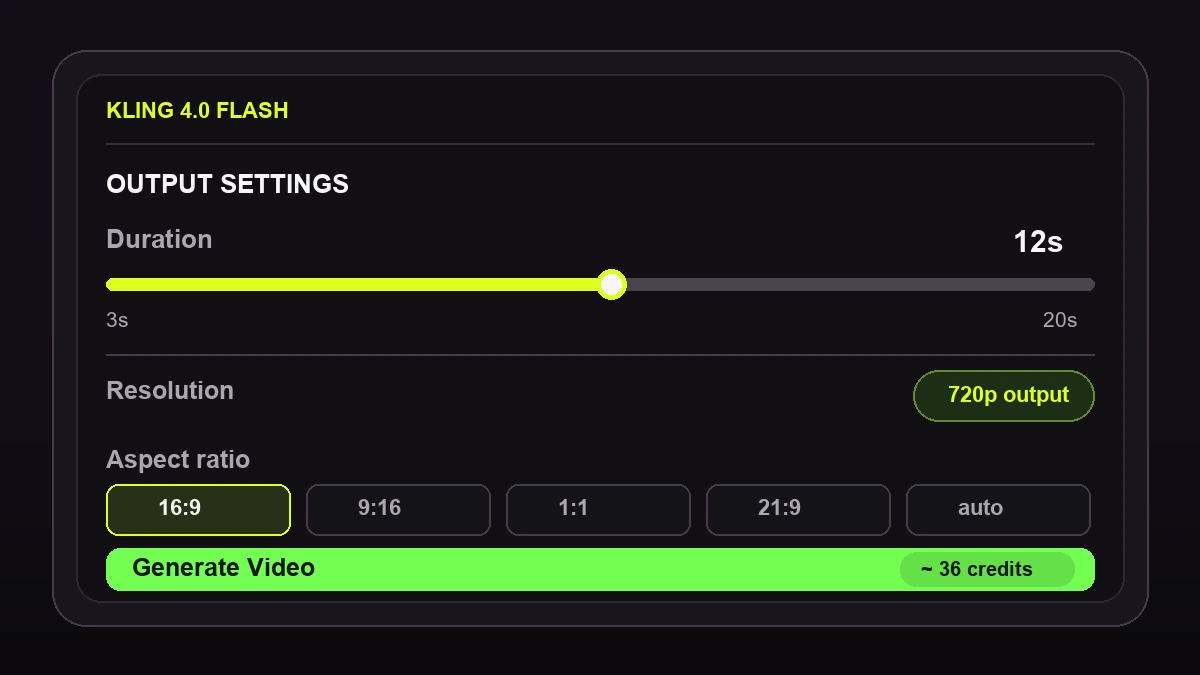
Set the video length

Choose 3–20 seconds. Select an aspect ratio when offered; Image to Video follows your image. Review the credit estimate on the Generate Video button.

Flash output settings showing 12 seconds, fixed 720p output, 16:9 ratio, and 36 estimated credits
04

Generate, watch, and save

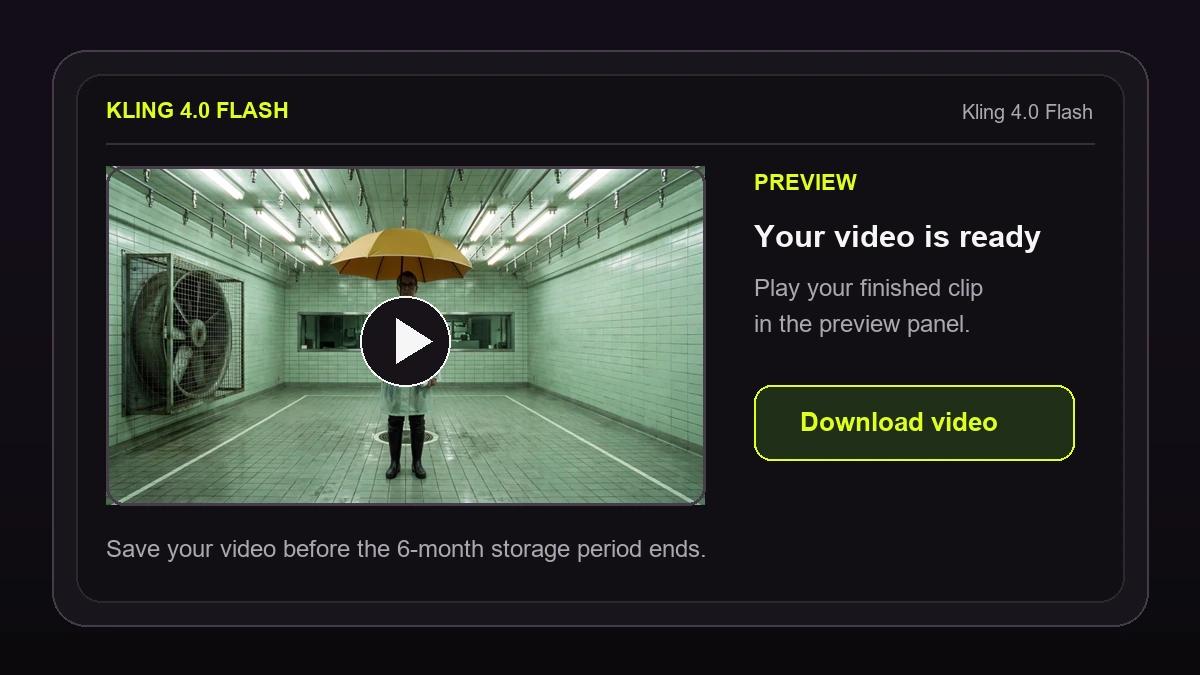
Click Generate Video. Watch the status in the preview, then play the finished clip and use Download video to save it.

Your creations are stored for 6 months. Download them before they expire.

Completed Flash video in the preview panel with a Download video button

Ready to start? Open the Flash generator.

Choose a model

Kling 4.0 Flash vs. Kling 4.0

Use Flash for a short 720p clip. Explore Kling 4.0 for longer scenes, keyframes, and more output options. Compare the details below to choose a workflow.

FeatureKling 4.0 FlashKling 4.0
Best forShort 720p clipsLonger scenes with more control
Video length3-20 seconds3-30 seconds
Output on this site720p generation720p and 1080p generation
Starting points on this siteText, a starting image, or Omni ReferenceText, keyframes, or Omni Reference
Multiple keyframesNot supportedUp to 10 images
Model resolution720pUp to 4K; available settings vary by service

Questions and answers

Kling 4.0 Flash FAQ

Get the details before you create. Learn what you can upload, how credits work, and when Flash or Kling 4.0 is the better fit.

Can I generate Kling 4.0 Flash videos here?

Yes. Use the Flash generator with a text prompt, one starting image, or visual references such as images and videos. Set the duration, choose an aspect ratio when available, and generate at 720p.

Do I need a prompt when I upload an image?

No. A prompt is optional in Image to Video mode. Add one starting image, then write a prompt if you want to guide the action, camera, or sound. Text to Video and Omni Reference require a prompt.

How long can a Flash video be?

Choose a duration from 3 to 20 seconds. Flash videos generated on this site output at 720p.

How many credits does a Flash video use?

Flash uses 3 credits per second. A 5-second video without reference video costs 15 credits. If you add reference videos, their combined duration is added to the output duration when calculating credits. The generator shows an estimate before you submit.

What can I upload in Omni Reference?

You can add PNG or JPG images and MP4 or MOV videos. The generator accepts up to 10 images and 5 videos, with 15 files total. Reference videos can be up to 20 seconds combined. Tell the model what each reference should guide.

What happens to my credits if generation fails?

The estimated credits are reserved when you submit a task. If generation fails, they are returned to your balance. If your balance does not update, contact support@kling-4.art with your task details.

Should I choose Flash or Kling 4.0?

Choose Flash for a short 720p clip. Choose Kling 4.0 when you need a scene up to 30 seconds or multiple keyframes. Check the available settings before you start.

Can I use a finished video for a commercial project?

Usage rights depend on the service used to generate the video and on the rights to any uploaded media. For videos created on kling-4.art, review our Terms of Service before using them commercially.

Ready to create?

Turn Your Next Idea into a Flash Video

Have a scene in mind? Turn a prompt, photo, or visual reference into a short video. Review your credit estimate before you create.

Need more time and keyframe control? Create with Kling 4.0. New to the workflow? Follow the tutorial.